
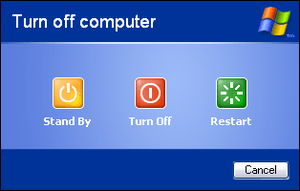
You may have heard the common advice to turn your computer off and on again when you have a problem. But did you know that there is a right and a wrong way to do that? Let us explain.
When you have a problem with your computer on Windows 10, you may call IT support and they may ask you to turn your computer off and on again. I do the same thing when my customers call me and tell me their issue. It is usually the first thing I ask them to do. But turning your computer off and on again is not the same as restarting your computer. There are two options: shutdown and restart. And they do very different things.
Let’s start with shutdown. What does shutdown do? Well, it does not just turn your computer off. It also creates cache files, which are also called hibernation files or hybris files. These are files that store a snapshot of all the running processes on your computer. When you turn your computer on again, it loads the system from these files. This means that if you had any problems with some applications or processes on your computer, they will still be there when you turn it on again.
The other option is to use restart. Restart is very different from shutdown. Restart actually turns your computer off completely and closes all the applications and processes. It does not use the cache files to load the system. It starts everything from scratch. This can often solve many problems with your computer, because it clears any errors or conflicts that may have occurred. Restarting your computer can also install any updates that are waiting for you. These updates may not install if you just turn your computer off and on again.
So, there is a big difference between what IT support means when they tell you to turn your computer off and on again, and what you actually do. The right way to do it is to use restart. You can do this by going to your start menu and clicking on restart.
There is also a feature called fast startup or quick boot that affects how your computer shuts down and starts up. You can enable or disable this feature from Windows or from the BIOS settings. To do this, you can go to the control panel, then hardware and sound, then power options, then choose what the power buttons do. You may need to click on change settings that are currently unavailable to see the option. There will be a checkbox that says fast startup. This feature makes your computer start up faster, but it also uses the cache files to load the system. You may want to keep this feature enabled, but you should also know how it works.